
Archiving a Program
Programs that are no longer needed or no longer require tracking can be archived in The Guard. Archiving is not permanent. Any archived program can be reactivated at any time.
Archiving keeps your Programs list clean and focused on what's actively being tracked, without permanently losing program data or history.
Table of Contents
Reactivating an Archived Program
How to Archive a Program
There are two ways to archive a program
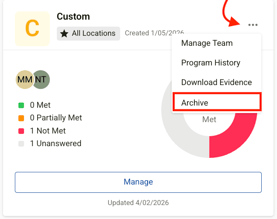
Option 1: From the Programs Tile View
- Navigate to Programs
- Locate the program tile and select the ellipsis (⋯) in the top-right corner
- Select Archive
Option 2: From Inside the Program
- Navigate to Programs
- Select Manage on the relevant program
- Open the Options dropdown in the top-right corner
- Select Archive

Viewing Archived Programs
By default, the Programs view only shows active programs. To find archived programs, change the Status dropdown from Active to either:
- Archived – Shows only archived programs
- Show All – Shows both active and archived programs

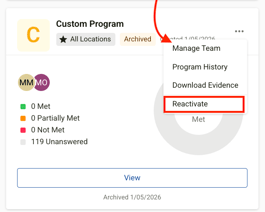
Reactivating an Archived Program
Select the ellipsis (⋯) on the program tile-
Select Reactivate
-
The program will be reinstated under Active Programs.
Related Articles