
Adding Team Members to Programs
Programs in The Guard support shared management by allowing multiple team members to be assigned as contributors. This gives everyone on the team visibility into the program so controls, tasks, and evidence can be managed collaboratively.
Before you begin: Make sure the Team has already been created in the Settings module. See [Settings Module Overview] for guidance.
Adding Team Members to a Program
When creating a new Program, The Guard will prompt you to add team members as part of the setup flow. Adding team members during program creation is optional. If team members are not added during creation, they can always be added afterward using the steps below.
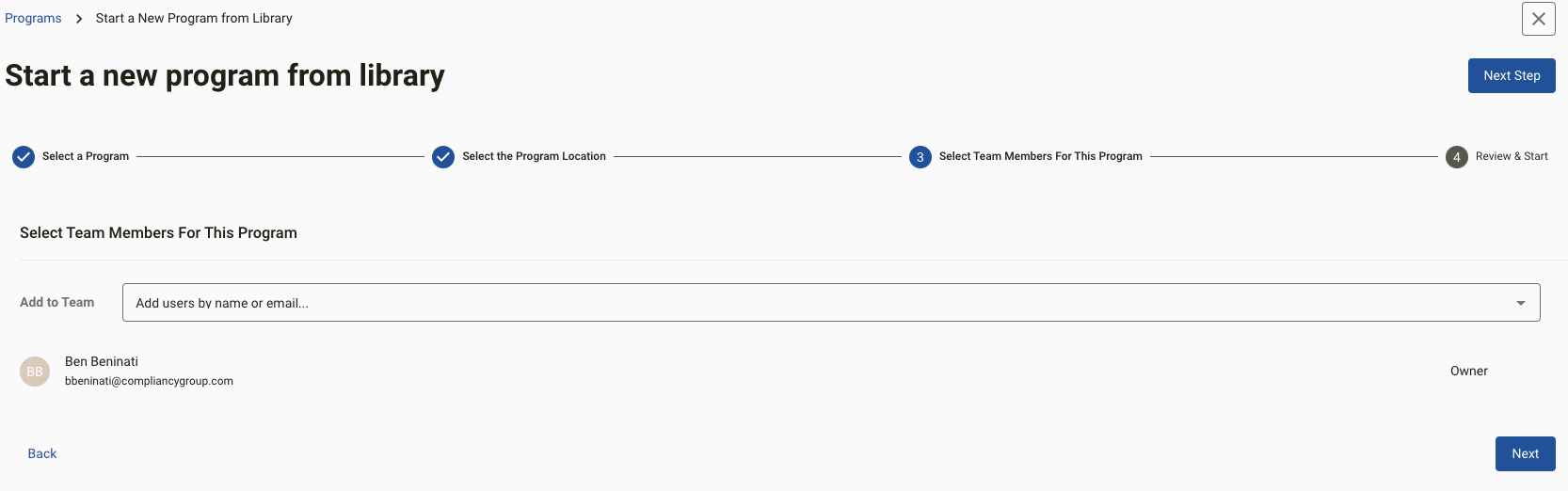
Team members can be added during program creation or at any time afterward using either of the two methods below.
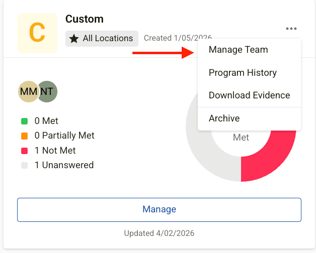
Option 1: From the Programs Tile View
- Navigate to Programs
- Find the program tile and select the 3-dot (⋯) menu
- Select Manage Team
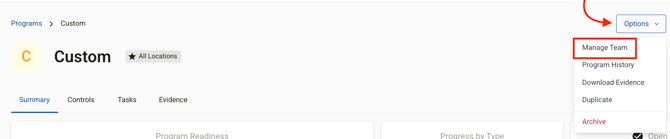
Option 2: From Inside the Program
- Navigate to Programs
- Select Manage on the relevant program
- Open the Options dropdown in the top-right corner
- Select Manage Team
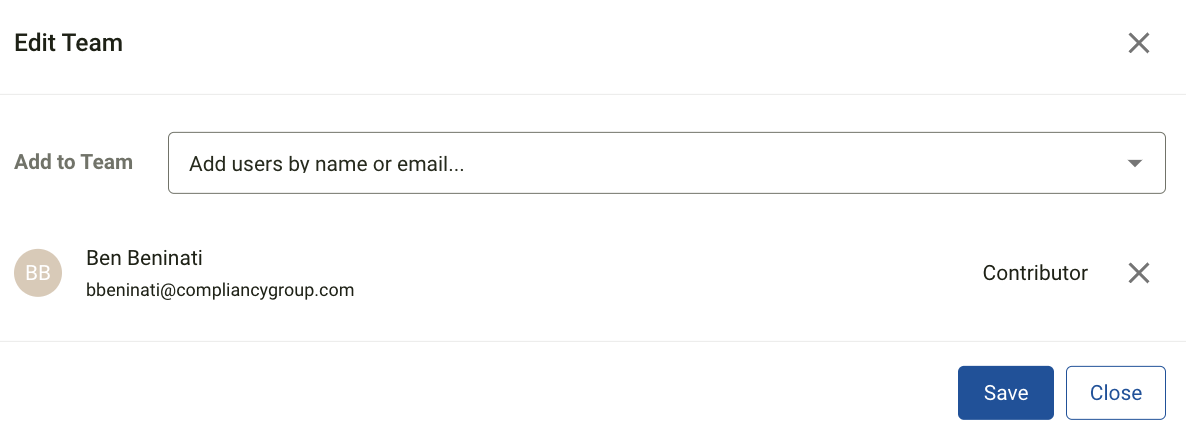
Once in the Manage Team window, select the team members to add. Added members will appear as a Program contributor and will immediately gain access to the program to manage its controls, tasks, and evidence.
How to Remove a Team Member
Follow either set of steps above to open the Manage Team window, then select the X next to the team member you want to remove.
Important: Removing a team member from a program does not automatically un-assign them from controls or tasks they were already assigned to. Those assignments can be updated using Bulk Actions "Assign" options within the program
Related Articles