
Employees
The Employees module lets your organization create and manage employee records.
- Employees are not system users (they don’t log in like Admins)
- They do not need to register
- When training is assigned, employees receive an email with a link to their Employee Portal to complete tasks or can send the email to themselves using this link Employee Portal Access Link
The employee list includes a summary dashboard that surfaces compliance stats for all employees at once.
At the top of the employee list the dashboard gives an admin an instant read on where the team stands — average conformance score, total open items, document requests and a breakdown of license statuses.
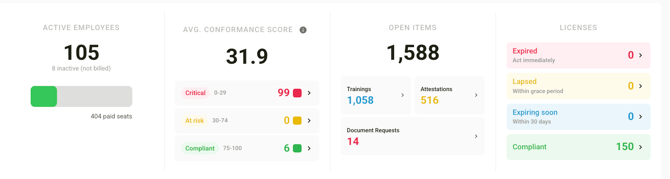
TABLE OF CONTENTS
- Creating Employees
- Employee Profile
- Employee Profile Actions and Options
- Deactivating an Employee
- Employee Portal Options
- Related Knowledge Base Articles
Creating Employees
You can create employees in two ways:
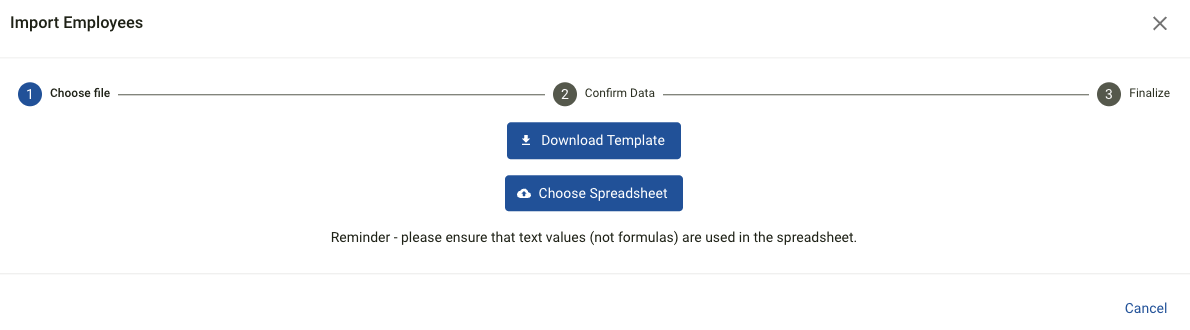
1. Bulk Import (Recommended for large lists)
- Go to Employees
- Select Import
- Click Download Template
- Fill out the spreadsheet
- Select Choose Spreadsheet to Upload
- Click Confirm, then Finalize
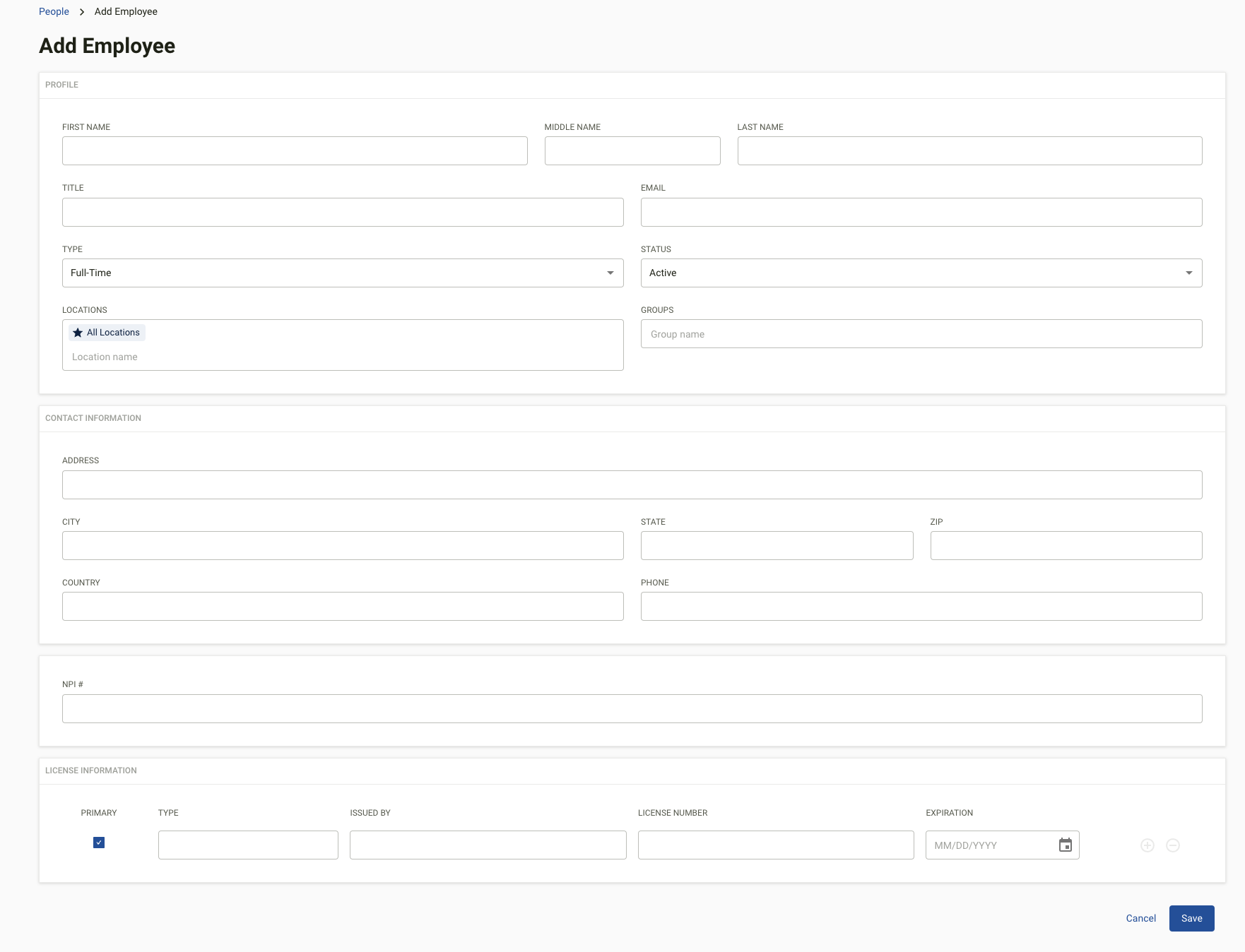
2. Add a Single Employee
- Go to Employees
- Select Add Employee
- Fill out the form
- Save
Employee Profile
After an Employee has been created, an Admin may open the Employee from their listed record in the Employee module.
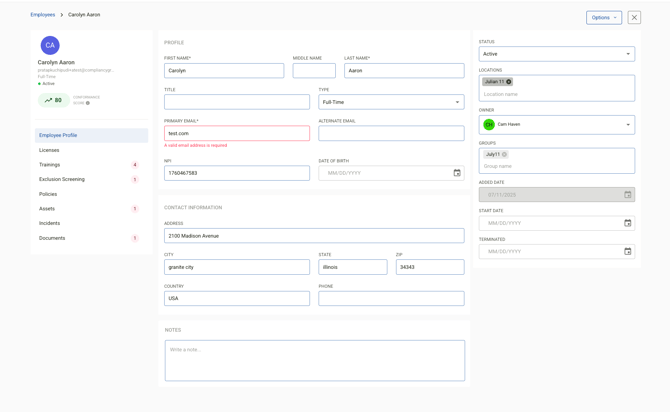
To view an employee:
- Go to Employees
- Click on the employee’s name
From the profile, you can view:
- Employee details
- Licenses
- Training
- Policies & documents
- Devices
- Incidents
- Verification matches (if enabled)
- Employee Documents
Employee Profile Actions and Options:
- Editing employee details in the available employee profile fields
- Deactivation of the employee is available in the status field or via Options menu
License tracking
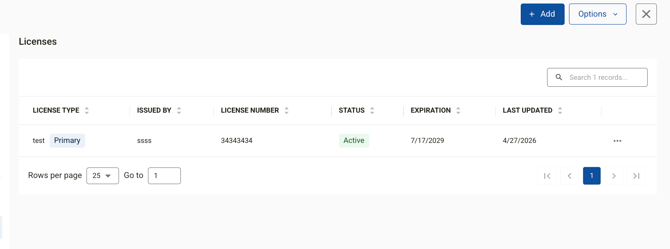
The Licenses tab on each employee profile displays all professional licenses in one view. Administrators can see license type, issuing body, license number, current status, and expiration date at a glance. When a license is expired or expiring soon, an alert banner appears at the top of the profile so nothing gets missed. License information can be edited, added and reviewed from this tab.
New licenses can be added by selecting +Add option on the upper right hand side.
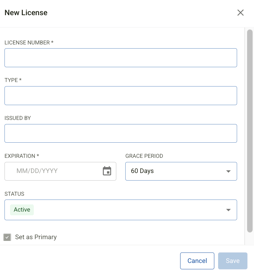
Required fields are marked with an asterisk * and include License number, Type, Expiration date, status and admin selected grace period of 30, 60, 90 or 180 days for license expiration. The issued by field is not required, but recommended.
Employee Documents
Available folders will appear on the document tab page. How folders are organized and what employees can see can be managed from the Document Folders in the settings module.Go to Settings → Employees → Document Folders to manage your folder setup. The 4 system folders are permanent and cannot be deleted. Customized folder are available with specific subscriptions.
Opening a folder shows all the files it contains, with key details visible at a glance:
- Expired files are highlighted in red for immediate visibility
- Each file displays its expiration date, upload date, and the name of the administrator who uploaded it
- Download any document directly from the file list
- Filters and search are available for the files within a folder to find what you need quickly
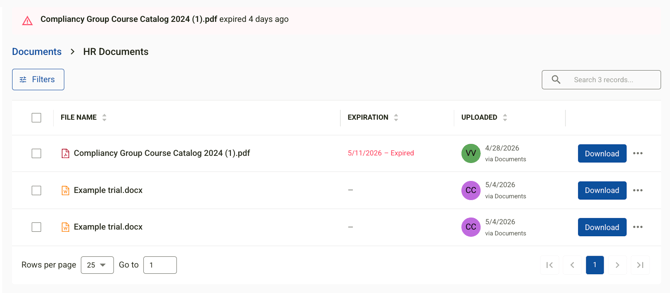
Uploading a document in an Employee Profile
New documents can be added from the employee's profile by selecting the Upload option on the upper right hand side. 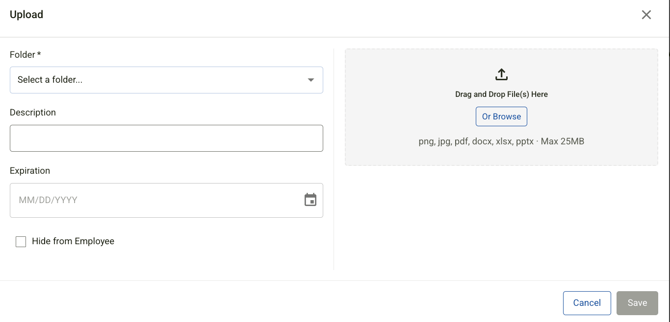
Uploading Documents to Multiple Employees
Admins can also upload a document to multiple employees at once directly from the employee list.
From the employee list, click Options → Upload Documents to Employees. A two-step upload modal will open.
Step 1 — Documents
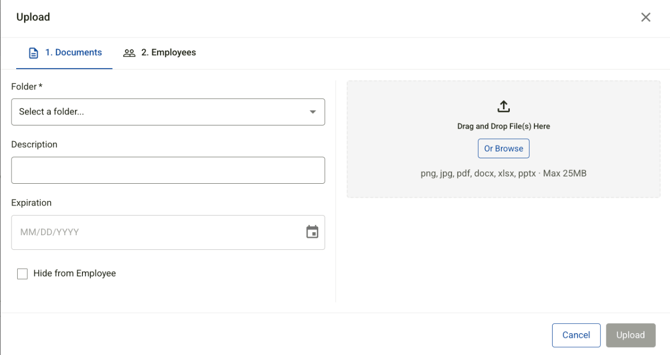
- Folder — select which folder the document will be placed in (required)
- Description — optional description for the file
- Expiration — optional expiration date; when set, the document will surface as a task in My Work when approaching or past this date
- Hide from Employee — check this to keep the document visible to admins only; unchecked documents will appear in the employee portal
- Accepted file types: PNG, JPG, PDF, DOCX, XLSX, PPTX — max 25MB per file
Step 2 - Employees
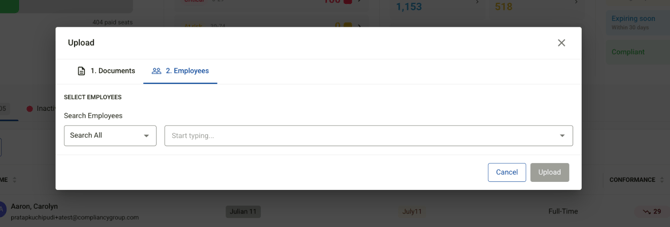
- Search for employees by name or filter by group, location, or other criteria
- The document will be uploaded to the selected folder on each chosen employee's profile
Deactivating Employees
Employees can be deactivated from the main Employees table or via the Employee Profile. A few examples of deactivating an Employee are shown below:
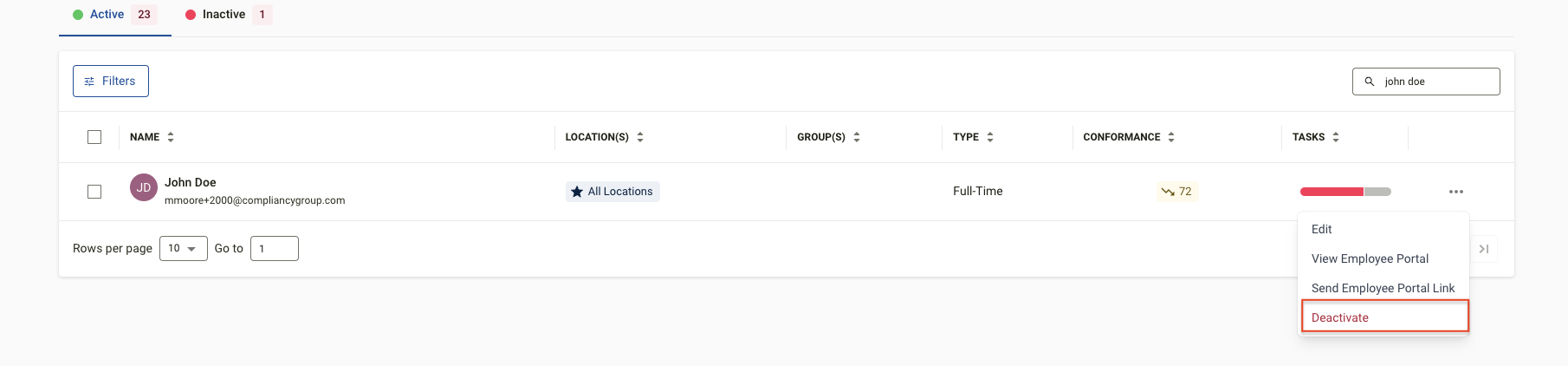
Deactivate One Employee (from list)-
- Go to Employees
- Click the (...) menu next to the employee
- Select Deactivate
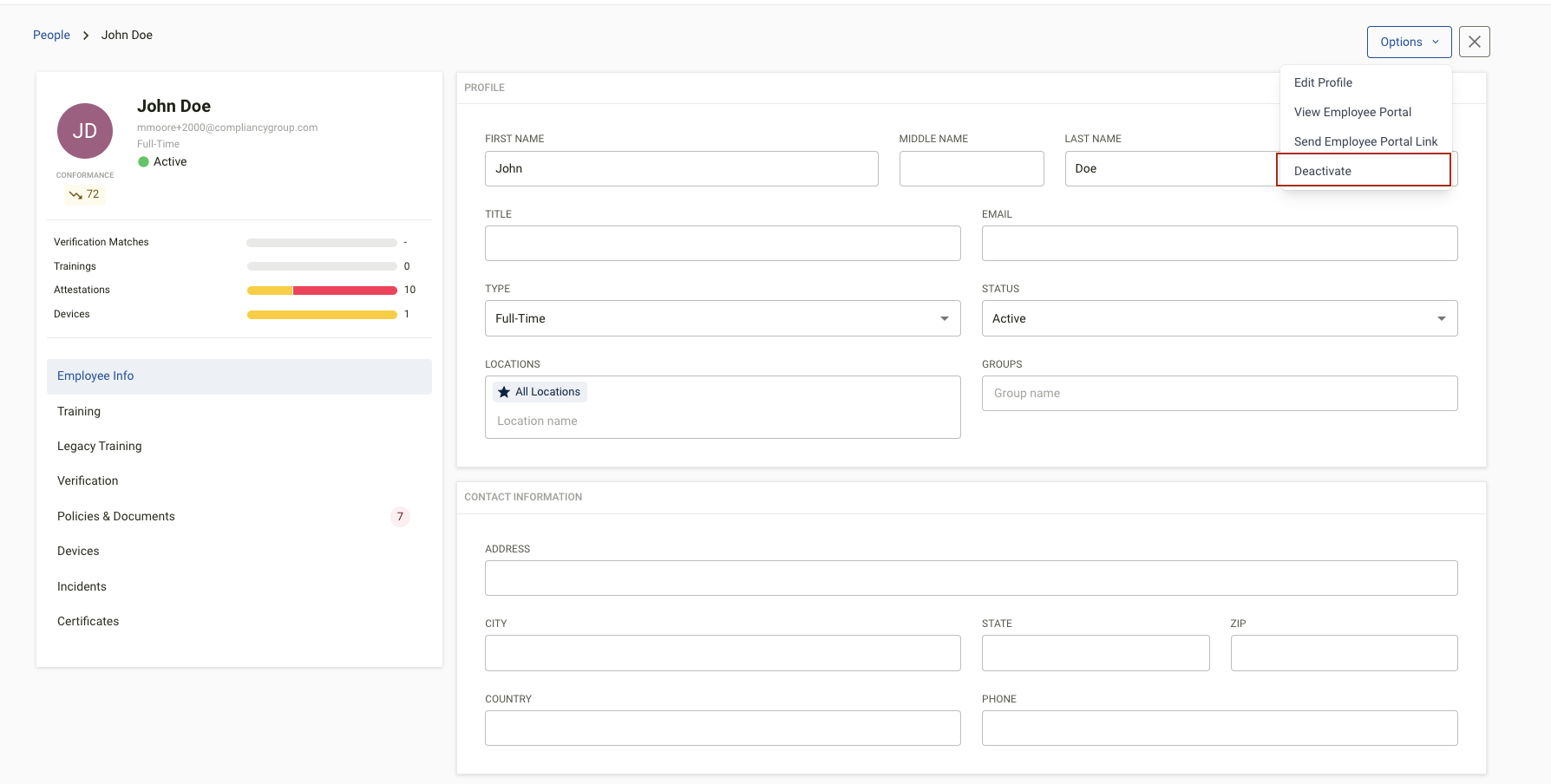
- Navigate to Employees
- Open an Employee's Profile by clicking on their Name
- Select the Options dropdown button in the top-right
- Select Deactivate
- Navigate to Employees
- Open an Employee's Profile by clicking on their Name
- Change the status field to inactive
- Select Save to save the changes
Bulk Deactivation
- Go to Employees
- Select employees using checkboxes
- Click Bulk Actions
- Select Deactivate Selected
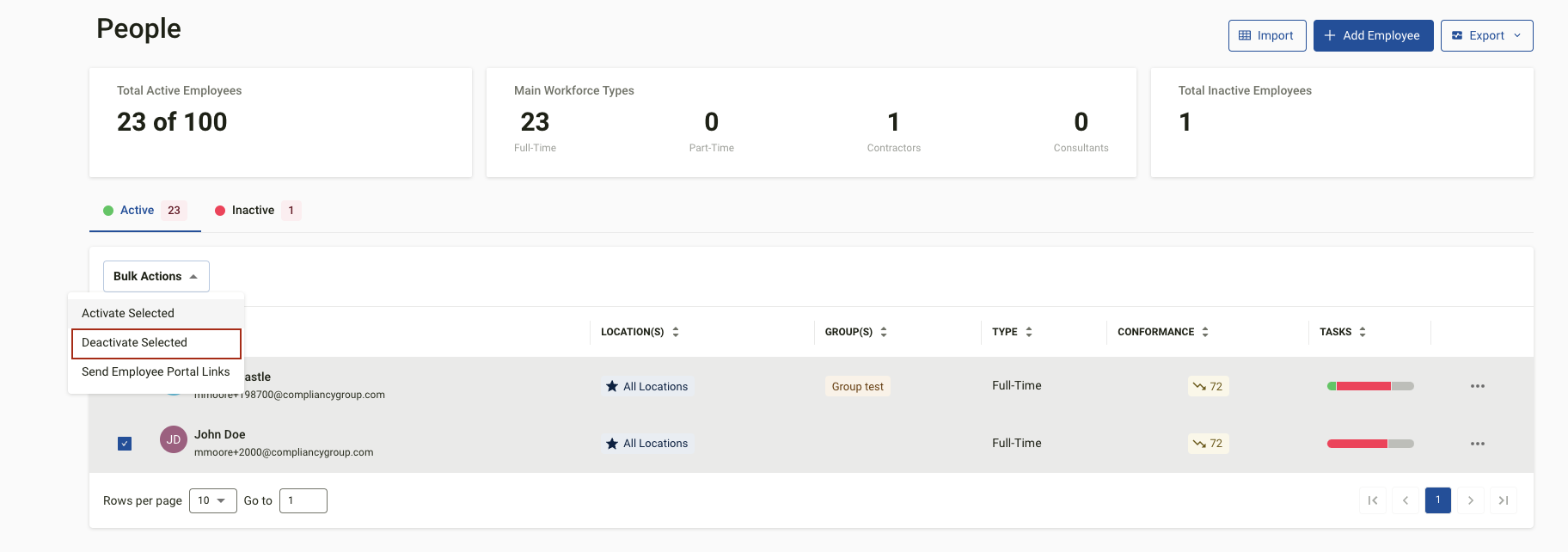
Inactive Employees will then display under the Inactive tab available in the Employees module. They can be reactivated at anytime.
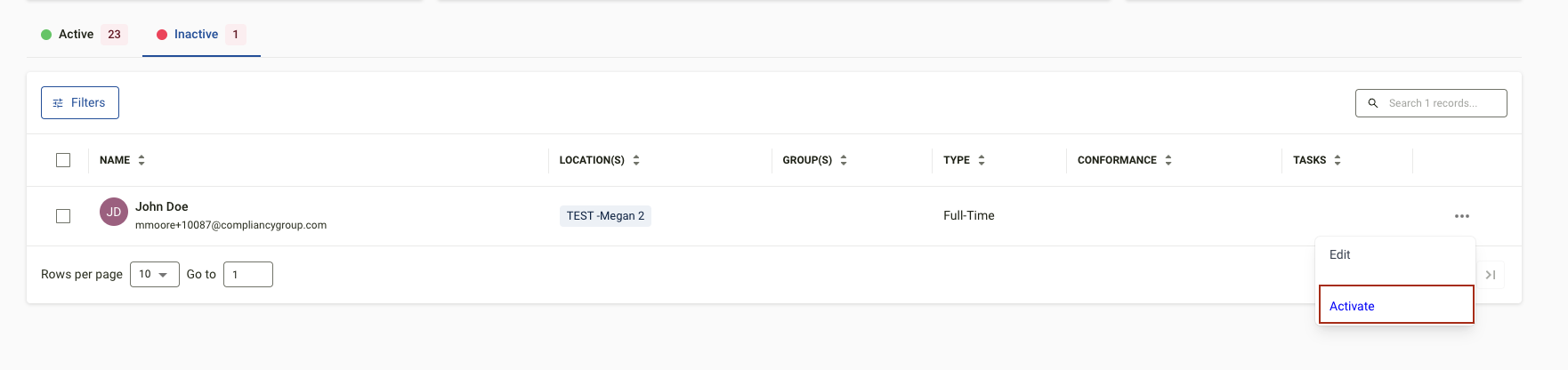
Reactivating an Employee
- Go to the Inactive tab
- Click the (...) menu next to the employee
- Select Activate
Admins can navigate to the Employee module and access an Employee's Portal or Send Employee Portal Links to the Employees from the UI.
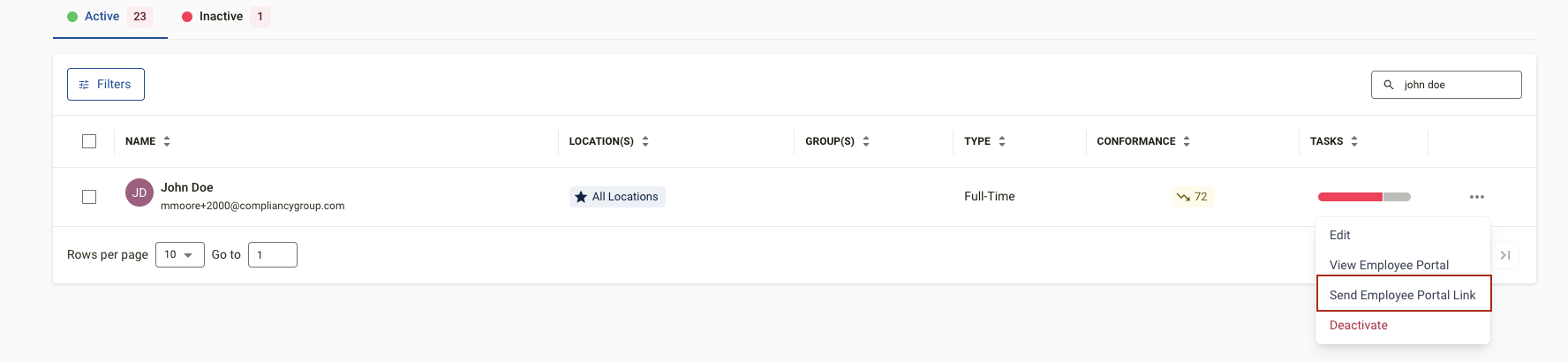
Sending Employee Portal Link to an Individual Employee:- Navigate to Employees
- Select the Ellipses Button (. . .) on the right-hand side
- Select Send Employee Portal Link
- An email will be then be sent to the Employee
 Sending Employee Portal Link to an Individual Employee (Employee Profile):
-
- Navigate to Employees
- Open an Employee's Profile by clicking on their Name
- Select the Options drop-down button in the top-right
- Select Send Employee Portal Link
- An email will be sent to the Employee within a few moments / minutes; Please confirm with the Employee that they received the email

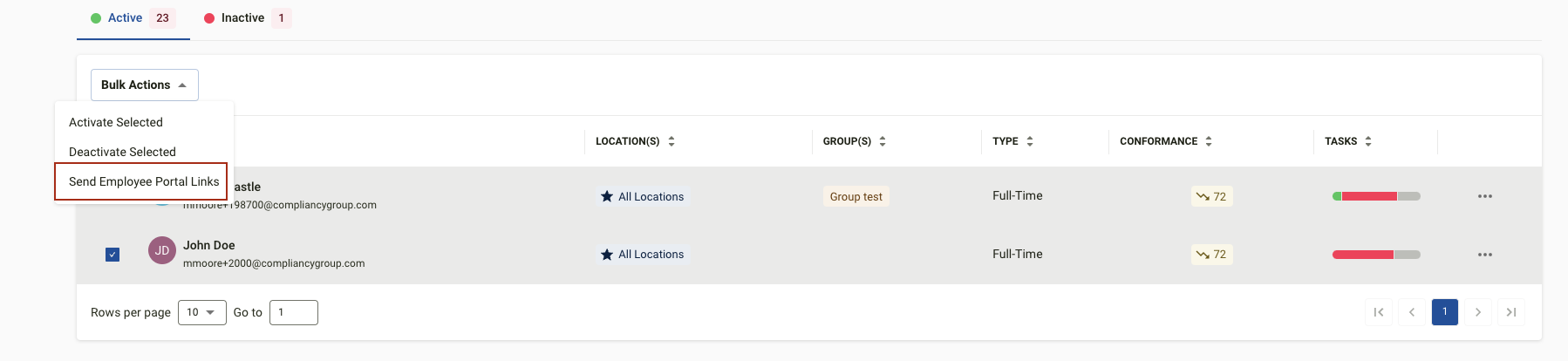
-
- Navigate to Employees
- Select Multiple Employees using the checkboxes on the left-hand side
- Select Bulk Actions
- Select Send Employee Portal Links
- An email will be sent to the Employee(s).
 Related Knowledge Base Articles