
Each module within the platform provides built-in export options to help you easily download and review associated data. Follow the steps below to locate and use export features across various modules.
Programs and Assessments
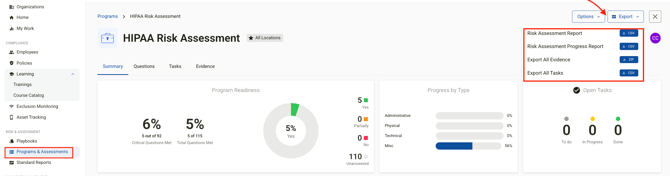
To export a Progress report for a program:
-
Navigate to the Programs module.
-
Select the desired program from the list.
-
Click the Export option on the upper right hand side.
-
Select Report type to download a CSV file of the program or tasks and a ZIP file of evidence.
Policies
To export policy-related reports:
-
Go to the Policies module.
-
Click the Export button in the upper-right corner.
-
Choose from the following export options:
-
Policy Summary Report
-
Attestation Summary Report
-

Attestation reports can also be downloaded from within each individual policy by selecting the ellipsis (...) next to the desired policy and selecting View Attestation. From there an option on the lower right hand side is available to download.
Training
To export training records:
-
Navigate to the Learning module and select Trainings.
-
Click the Export button in the upper-right corner.
-
Select one of the following:
-
Course Summary Report - available in CSV and PDF format
-
Employees Course Summary ( CSV file that includes records for all active trainings)
-

Training reports can also be downloaded from within each individual training by opening the desired training and using the export options on the upper right hand side.
If you have Legacy training from the previous training module:
- Navigate to Training
- Use the Ellipsis on the right hand side to select " View Legacy Training"
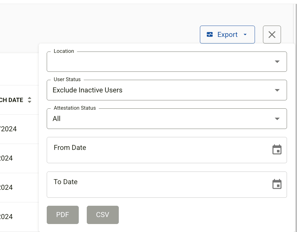
- Use the Export option on the right hand side to download CSV or PDF versions of the legacy training reports.

Vendors, Applications, and Assets
To export data from these modules:
-
Navigate to the Vendors, Applications, or Assets module.
-
Click the Export button in the upper-right corner.
-
The export will include relevant records from the selected module in CSV or PDF format.
If you have any questions or need assistance download, please contact your CSM or our support team at support@compliancygroup.com.