
Hotline Module Overview
The Hotline module provides a centralized workspace to investigate, manage, and resolve reports efficiently.
Hotline Module Dashboard
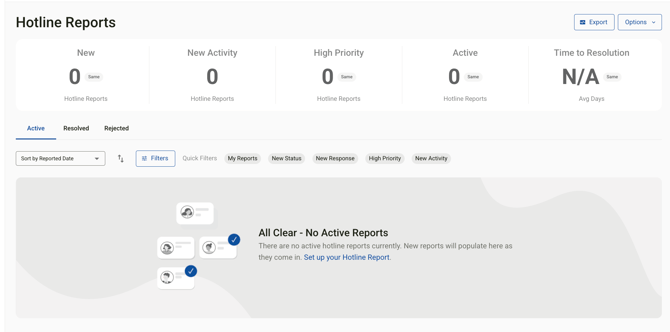
The Hotline Intake dashboard gives you a real-time snapshot of incoming and active hotline submissions.
There are three ways to make a Hotline Report:
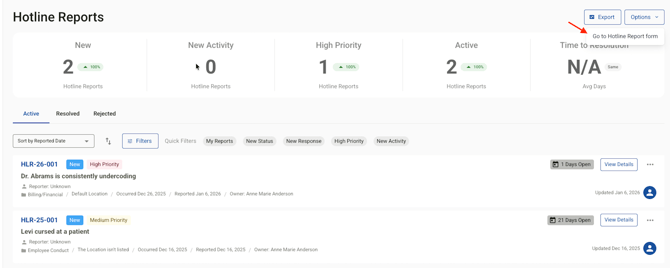
Navigating to the Hotline module and selecting Options> Go to Hotline Report Form
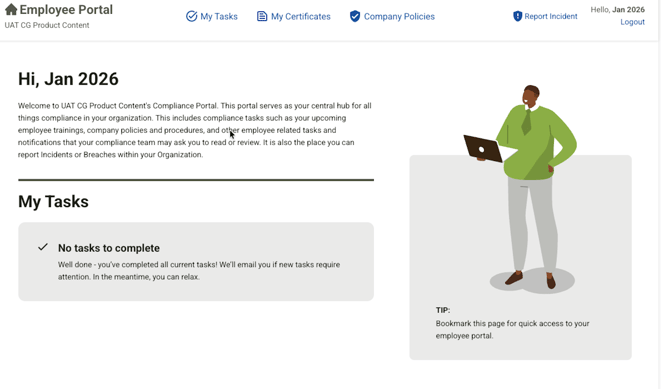
A hotline report can also be made from the employee portal by selecting Report Incident:
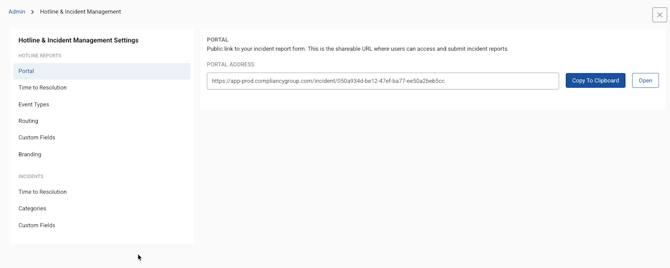
In Settings> Hotline & Incident Management the hotline report url can be copied and pasted to share for reporting.
Once in the hotline intake form, the report can be made anonymously by the reporter or with identifying information available.
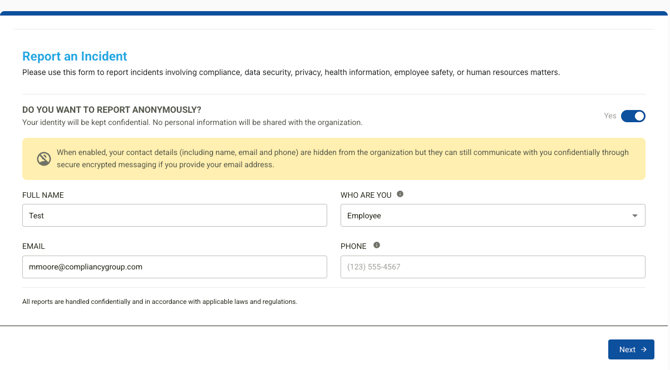
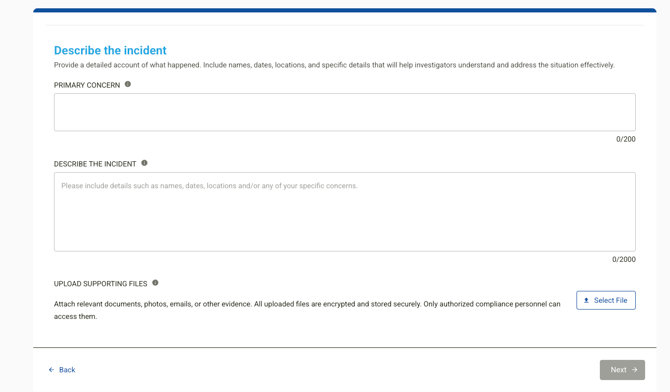
After entering their contact details, the next page offers fields to detail concerns, incident details, and any support files/evidence.
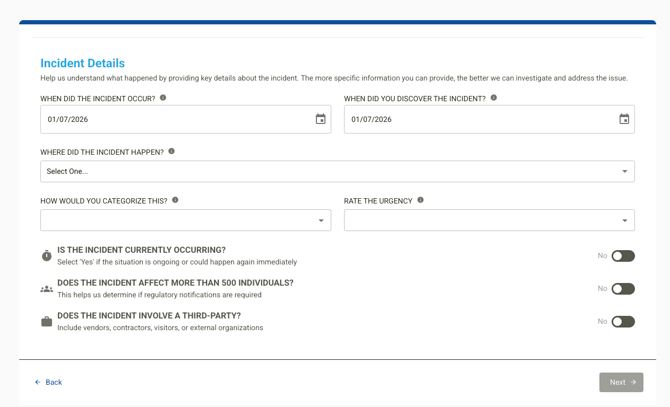
After selecting next, a form to add additional incident details for date, discovery, location, categorizing and urgency is available. A toggle can be used to mark yes or no to answer if the incident is currently occurring, impacting more than 500 individuals and if it involves a third party.
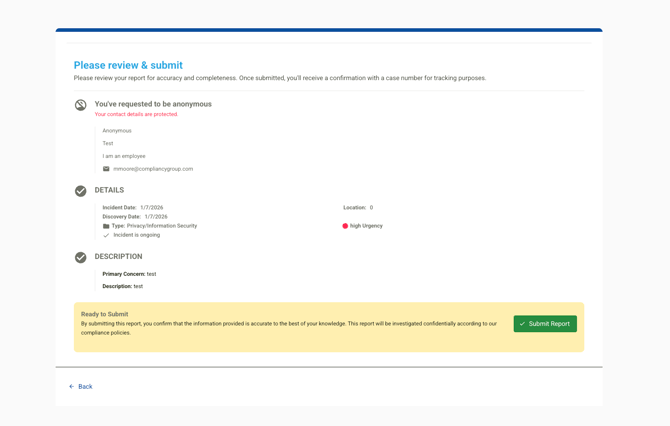
After completing the form, a review page will appear and after review the hotline report can be submitted.
The report will then appear in the Hotline module.

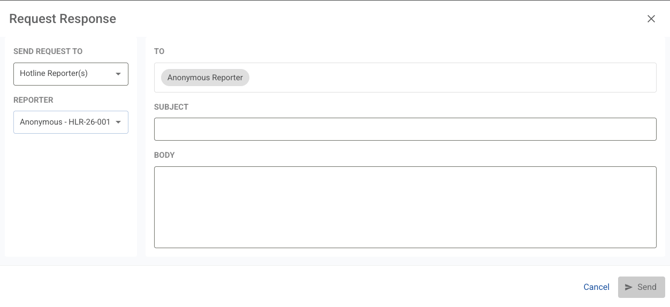
Selecting view details on a hotline report opens the report where the entry can be viewed. Selecting the + New button will offer options to add a new note or attachment. It is also possible to request a response from the reporter, whether they reported anonymously or not.
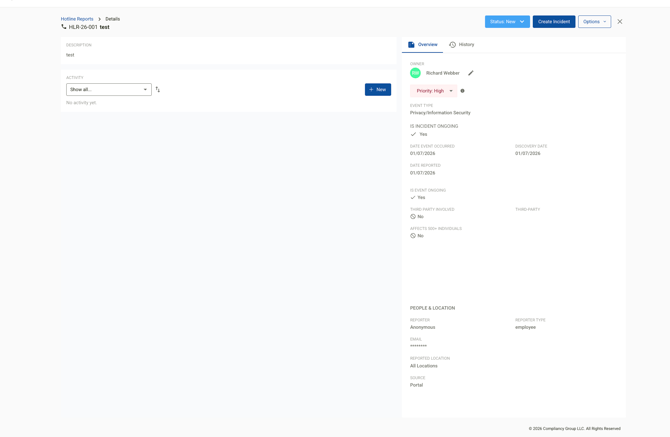
The Hotline Report details page provides an overview, options to change the status or create an incident from the hotline report. When you select the Create Incident option a form will appear to complete with incident information, and then the report will show in the Incident Module. Selecting options will also offer the ability to export the hotline report individually.
When the Hotline module is selected the dashboard and hotline report list will populate.
Key Metrics
At the top of the dashboard, you’ll see summary metrics including:
-
New – Newly submitted hotline reports
-
New Activity – Reports with recent updates
-
High Priority – Reports flagged as high priority
-
Active – Currently open reports
-
Time to Resolution – Average resolution time (displayed as N/A when no reports are resolved)
Report Views
You can switch between:
-
Active
-
Resolved
-
Rejected
Sorting & Filtering
-
Sort reports by Reported Date
-
Use Filters or Quick Filters, including:
-
My Reports
-
New Status
-
New Response
-
High Priority
-
New Activity
-
Empty State
When there are no active hotline reports, the dashboard displays:
All Clear – No Active Reports
New reports will populate here as they come in. A shortcut is provided to Set up your Hotline Report.
Setting up your Hotline Report:
Navigate to the Settings Module and select the Incident & Hotline Management tile.
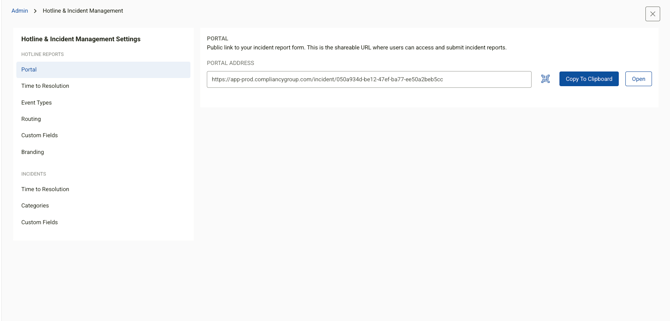
The portal tab includes the form where hotline reports can be submitted.
Portal Address
-
A unique, system-generated URL for your hotline reporting form
-
Anyone with the link can submit an incident (no login required)
Copy to Clipboard
-
Copies the portal URL so it can be pasted and shared
Open
-
Opens the incident reporting portal in a new tab
-
Useful for:
-
Verifying portal access
-
Reviewing the reporting experience
-
Testing configuration changes (fields, branding, routing) ( Only available with certain plans.)
-
Time to resolution offers the option to enable a set target date for resolution and track progress through color indicators. Green for on track, yellow for approach the limit, and red for overdue.