Incident Module Overview
The Incident module provides a centralized, auditable workspace for managing incident intake, investigation, response, and documentation.
Designed to support HIPAA, OSHA, and internal compliance requirements, this module helps organizations move from reactive incident handling to a structured, defensible response process all within The Guard
Table of Contents
Adding a New Incident
After selecting New Incident, a form will open allowing you to enter all relevant incident details.
-
Required fields are marked with an asterisk (*) and must be completed before the incident can be saved.
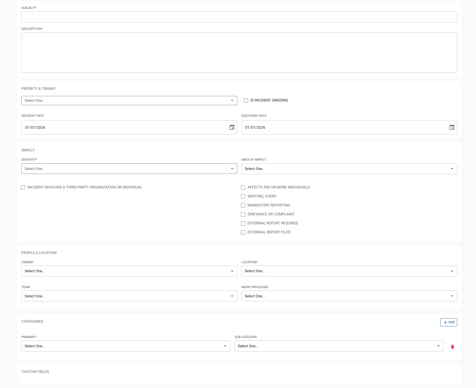
The following fields are available when creating a new incident:
-
Subject – A brief summary of the incident
-
Description – Detailed information about what occurred
-
Priority & Timing – The urgency and timeframe of the incident
-
Impact – The scope of impact caused by the incident
-
Incident Owner – The individual responsible for managing the incident
-
Location – Where the incident occurred
-
Incident Access Permission – Controls who can view or manage the incident. If Privileged is selected only individuals or selected team members will be able to access the incident.
-
Category – The type of incident

In the incidents module on the right side options include Creating a New Incident, Exporting a list of incidents, and using the options drop down to navigate back to the hotline reports module.
Key Metrics
The incident dashboard includes:
-
New Incidents
-
New Activity
-
High Priority
-
Average Resolution Time

Incident Views
-
Active – Open incidents
-
Closed – Resolved incidents
Sorting & Filters
-
Sort by Created Date
-
Quick Filters include:
-
My Incidents
-
High Priority
-
New Status
-
New Response Status
-
New Activity
-
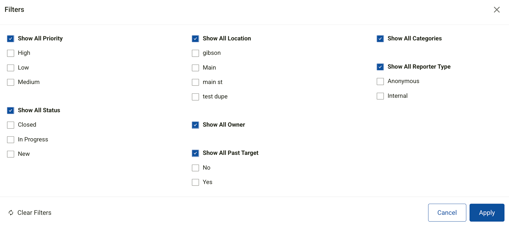
Filters offers additional options priority, status, location, owner, past target date, categories, and reporter type.
Incident Records
Each incident appears as a structured record with key details visible at a glance:
Incident Summary
-
Incident ID (e.g., INC-25-001)
-
Status (e.g., New)
-
Priority (Low, Medium, High)
-
Severity (e.g., Minor)
-
Days Open
-
Reporter (Employee or Anonymous)
-
Incident title and category
-
Date occurred and date opened
-
Owner and last updated date
Incident Details Page
Selecting View Details opens the full incident record. The incident details page is used to view, monitor and modify the incident details. The status can be changed, edit will open the incident for modifications, and Export will allow the individual incident to be exported.
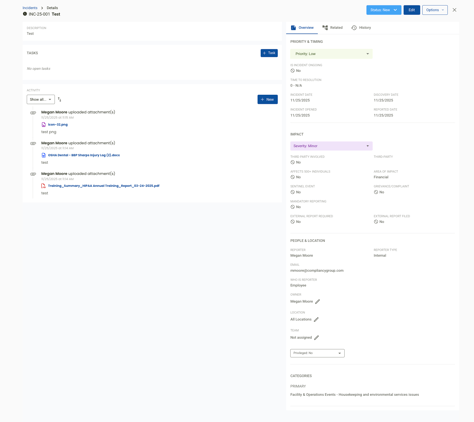
The incident details page provides a comprehensive snapshot of the incident, including:
Priority & Timing
-
Priority level
-
Incident ongoing status
-
Incident date
-
Discovery date
-
Reported date
-
Time to resolution (automatically calculated)
Impact Assessment
-
Severity
-
Third-party involvement
-
Whether 500+ individuals are affected
-
Sentinel event indicator
-
Mandatory reporting required
-
External report filed
-
Area of impact (e.g., Financial)
-
Grievance or complaint indicator
People & Location
-
Reporter name and type (Internal or Anonymous)
-
Reporter email (if applicable)
-
Incident owner
-
Location(s)
-
Assigned team
-
Privileged designation (Yes/No) to protect sensitive investigations. If yes is selected the incident is only accessible by the incident owner and team members assigned to the incident. Access will be locked for anyone not assigned to the team.
Categories
-
Primary incident category (e.g., Facility & Operations Events – Housekeeping and environmental services issues)
Tasks, Activity & Evidence
Tasks
-
Add and track remediation or follow-up tasks directly within the incident
-
View open or completed tasks related to the investigation
Activity Log
-
A complete timeline of all actions, updates, and comments
-
Automatically records user actions for audit readiness
Attachments & Evidence
-
Upload and store supporting documentation such as:
-
Images
-
Training records
-
Policies
-
Reports and forms
-
-
All uploads are timestamped and attributed to the user
Linking Incidents & Hotline Intakes
Incidents can be linked to related hotline intakes to maintain:
-
A clear, connected case record
-
End-to-end visibility from anonymous intake to formal investigation
-
Consistent documentation across related records
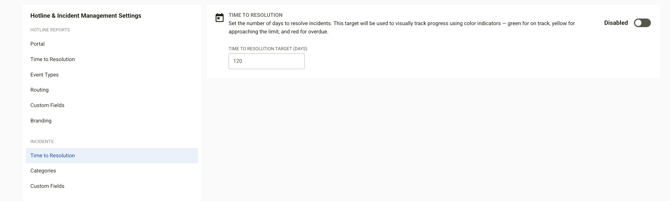
In the Settings module selecting the Incidents & Hotline Reports tile will offer options for customization. Time to resolution, categorizing, and custom field options can be accessed and modified. ( Please note some options are only available on specific plans)