
Overview
The Learning Module in The Guard enables organizations to assign, manage, and monitor employee education using a simple, customizable setup. Administrators can select from a curated Course Catalog, which includes:
-
Standard Courses (available to all clients)
-
Premium Courses, which require Token purchase
Table of Contents
Assigning Training
To assign training courses to employees, organizations can use the Learning module’s Course Catalog, which includes both Included and Premium courses.
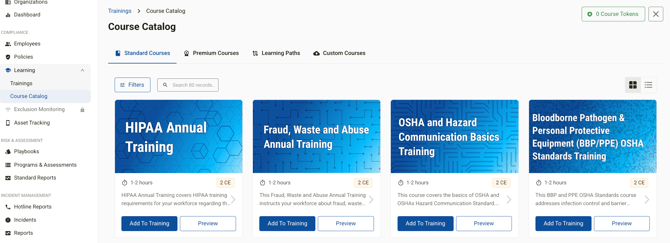

Creating a Training Assignment – 5 Easy Steps:
-
Courses
-
Select one or more courses to include.
-
Set a Cadence (e.g., linear progression where one course must be completed before the next begins).
-
-
Name & Description
-
Assign a custom name to the training assignment.
-
Add a description to guide employees (visible in their portal).
-
-
Instructor
-
Optionally assign an instructor (purely informational).
-
-
Enrollments
-
Assign training through Groups, Locations, All Employees, or individually.
-
Enable or disable Auto-Enrollment as needed.
-
You may add new Groups, Locations, or individual Employees to an existing training at any time.
-
-
Settings
-
Set a Start Date and Completion Period or End Date.
-
Choose whether Auto-Enrollment is enabled.
-
Review settings and Complete the setup.
-
Completing Training
Employees will receive an email once they’ve been assigned learning content. The email includes a direct link to the Training or Employee Portal, where they can complete the assigned courses.
Note: Employees are not required to log in to The Guard.
Additional Resources for Employees
Share the following articles for help navigating the new Learning Management System (LMS):
Admins and Compliance Officers can view training progress from the Enrollments tab or mark a course as Complete as Proxy, which completes all associated courses for the employee.
They may also Resend Reminders to employees who haven’t yet completed their training.
Monitoring Training
Admins can monitor employee progress through the following areas:
-
Training> Summary Tab
-
Training > Enrollments Tab
-
Employees > Employee Profile
Clicking View on an employee’s enrollment record displays their progress across all assigned courses. Reporting tools within the Training module allow for deeper insights and data export.
Employee profiles will automatically reflect the status of assigned training under the Employee module.
Certificates
Certificates are issued upon course completion and are accessible both from the employee’s Profile and the Training module. While CE certificates are emailed from the service provider to the associated email after the form at the end of the course is submitted.