.png?width=2000&height=500&name=Compliancy%20Group%20logo%20(3).png)
Employee Profile Overview : Every employee created in The Guard will have an Employee Profile. When accessing the Employees module, an admin can select an employee's name to open their profile.
Table of Contents
Employee Profile
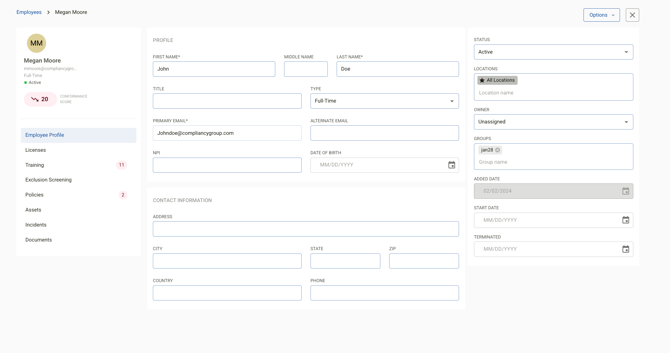
On the upper left side of the profile, the employee's name, email, type, and status are displayed alongside their Conformance Score. The Conformance Score is based on the statuses of assigned Policy Attestations, Trainings, Device Security, and Verification Matches (where applicable). The status bars reflect the amount of Verification Matches, Trainings, Attestations, and Devices an employee has. Verification Matches will only populate at organizations where Exclusion Monitoring is available and enabled.
The profile also displays the following fields:
- Owner —The assigned owner receives My Work notifications for licenses expirations, and document expirations for the employee.
- Start Date / Added Date / Terminated Date — employee lifecycle dates
Employee Profile Tabs
Further down on the left side of the employee profile profile are selectable tabs that display additional information for each employee when selected.
- Employee Info — displays employee name, address, type, status, location, group, NPI #, and license information entered by the organization
- Licenses — displays all professional licenses on record for the employee, including license type, issuing body, license number, status, and expiration date. Licenses are automatically assigned a status of Active, Lapsed, Expiring Soon, or Expired based on the expiration date and grace periods configured by your organization. An alert banner appears on the profile when a license has expired. Expiring and expired licenses also surface as tasks in My Work.
- Training — displays the trainings created in the Training module that this employee has been assigned to. Using the ellipsis on the right hand side of a listed training will offer the option to Mark Complete As Proxy. This will complete the training, including all courses assigned within it. Once a training is complete, it cannot be reopened.
- Verification — displays verification matches found for an employee when Exclusion Monitoring is available and enabled at an organization
- Policies — displays any policies or documents that have been assigned to the employee for attestation in the Policies module
- Devices — displays any assets the employee has been assigned to in the Assets module
- Incidents — displays any incidents that the employee has reported
- Documents — displays all compliance documents stored for this employee, organized into folders. Every profile includes four system folders: Certificates, HR Documents, Licenses, and Signed Documents. Administrators on Growth and above can create unlimited additional custom folders. Expiring and expired documents automatically surface as tasks in My Work, and an alert banner appears on the tab when any file has expired.
Employee Profile Documents Tab
The Employee Profile Documents tab organizes all compliance documents for an employee into folders; licenses, certifications, vaccine records, signed agreements, COI Surveys, and more. Each folder shows the total file count and the date of the most recent upload.
The four system folders included on every profile are:
- Certificates — licenses, certifications, and training completion records
- HR Documents — onboarding records and HR files
- Licenses — license document copies
- Signed Documents — agreements, forms, and acknowledgments
Opening a folder shows all files it contains, along with the expiration date, upload date, and which administrator uploaded each file. Expired files are highlighted in red. Documents can be downloaded directly from the file list and can be filtered and searched within a folder.
Administrators on Growth plans and above can create additional custom folders from Settings → Employees → Document Folders. Custom folders can be named, color-coded, reordered by dragging, and toggled visible or hidden for the employee portal. The four system folders are permanent and cannot be deleted.