
Vendor exclusion monitoring
How to configure and review exclusion screening in the Vendor module
Before you begin
Prior to enabling exclusion monitoring, ensure all relevant fields in vendor profiles are fully populated. Complete profile data is critical for generating high-confidence matches and reducing false positives.
Vendors can be added through a Bulk Import or individually. See Vendors Overview for guidance on setting up vendor profiles.
Enabling exclusion monitoring
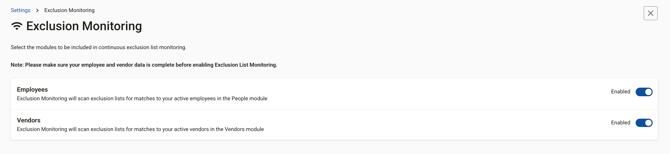
Exclusion Monitoring for vendors can be enabled in the Settings module. Once in the settings module, select the Exclusion Monitoring tile and use the toggle for Vendor's to turn on exclusion monitoring.
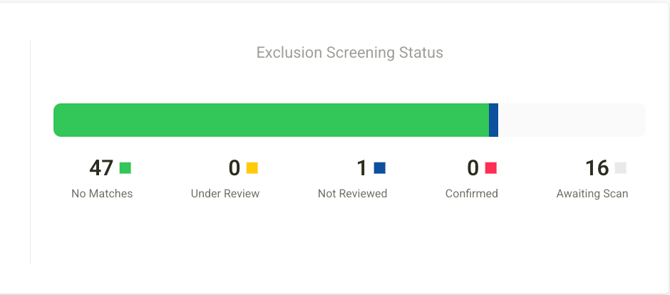
Once exclusion monitoring is enabled, a status bar appears at the top of the Vendor module displaying a real-time summary of your screening activity. Status's include: No Matches, Under Review, Not Reviewed, Confirmed and Awaiting Scan.
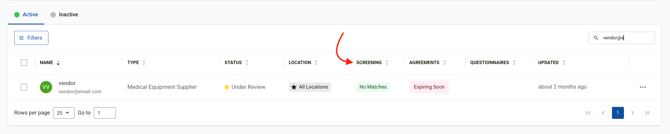
Individual screening status is also visible directly in the vendor list under the Screening column, so you can quickly identify which vendors need attention.
Reviewing vendor profiles
The Vendor Profile shows whether a match has been identified for a vendor during exclusion screening. To investigate further, navigate to the Exclusion Screening tab within the profile. This tab surfaces the following key details:
- Conformance score — indicates how closely the record matches an exclusion list entry
- Exclusion list — identifies which list the potential match originates from
- Status — current review state of the match
- Match date — when the match was first identified
- Last update — most recent change to the match record
Taking action on a match
To act on a match, click the ⋯ icon on the right-hand side of the match row. This opens a context menu with the following options:
- View more match details — see the full record and supporting data
- Add a new task — assign follow-up work related to the match
- Verify the match — confirm or dismiss the match after review
- Go to Vendor Information tab — navigate directly to the vendor's profile