
How to Create Training
The Training module (found under the Learning dropdown) allows administrators and officers to build, assign, and manage training programs for their organization.
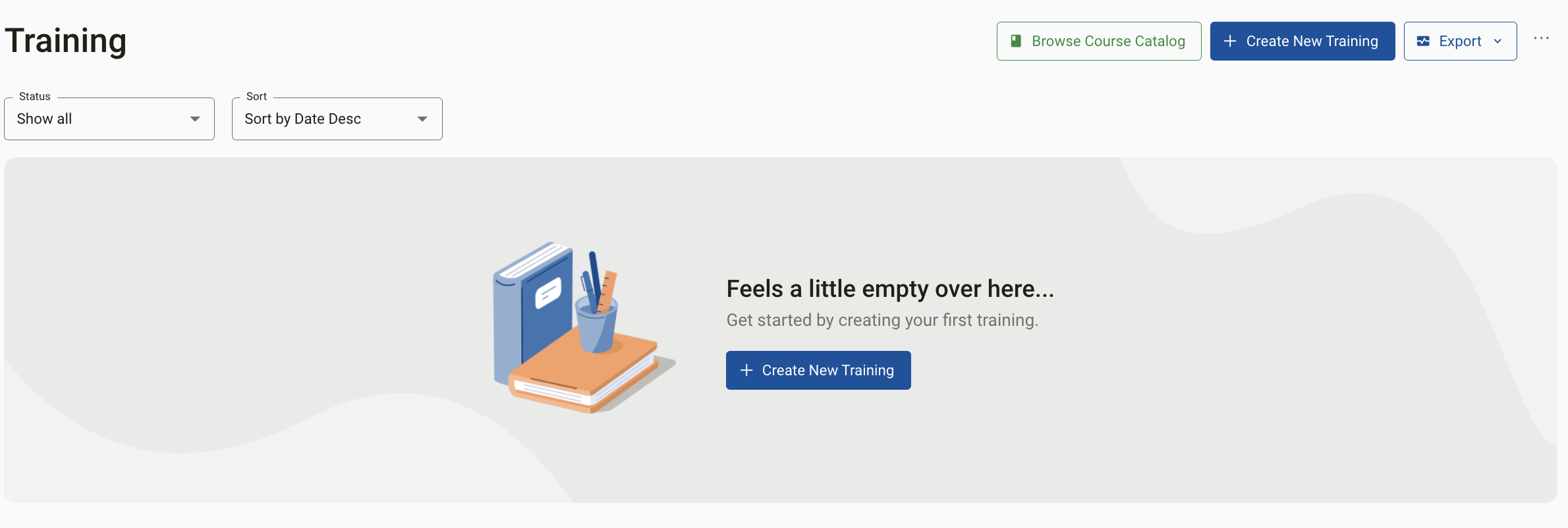
Creating a Training
Navigate to Learning > Training and select Create New Training.
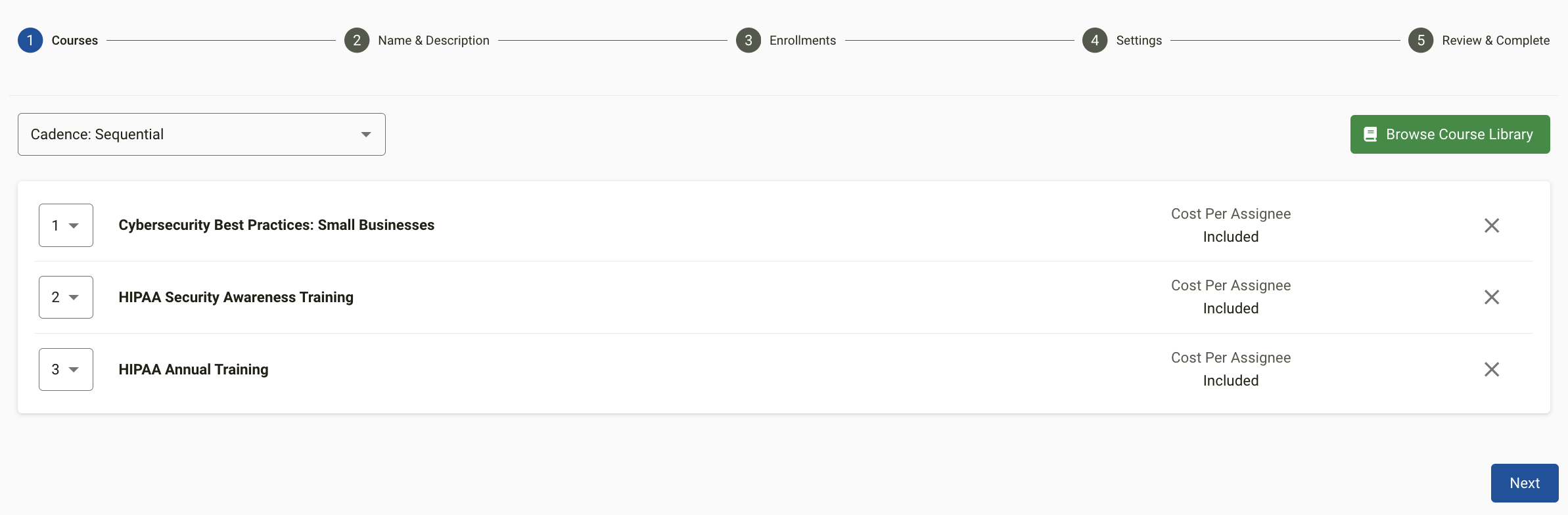
Step 1: Select Courses and Cadence
Cadence controls how learners progress through courses:
- Sequential – Each course must be completed before the next one unlocks. Use the left-hand dropdowns to set the preferred course order.
- Unordered – All courses are available immediately upon enrollment.
Use Browse Course Library to find and add courses. Multiple courses can be added to a single Training.
Important: Courses cannot be added, removed, or changed after a Training has been created. Preview all courses before finalizing.
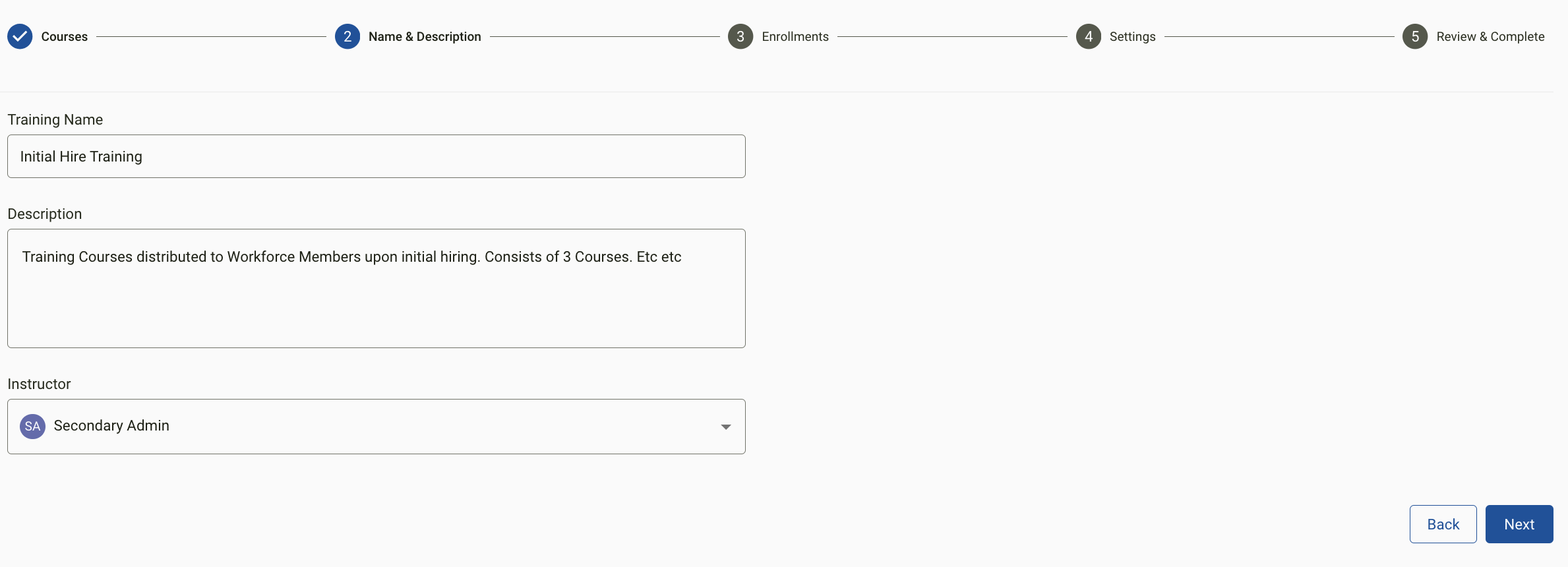
Step 2: Name, Description, and Instructor
- Name – Defaults to the first course name if not changed (e.g., "Onboarding," "Annual HR Training").
- Description – Optional summary of the training's purpose or contents.
- Instructor – Any active team member responsible for monitoring completion.
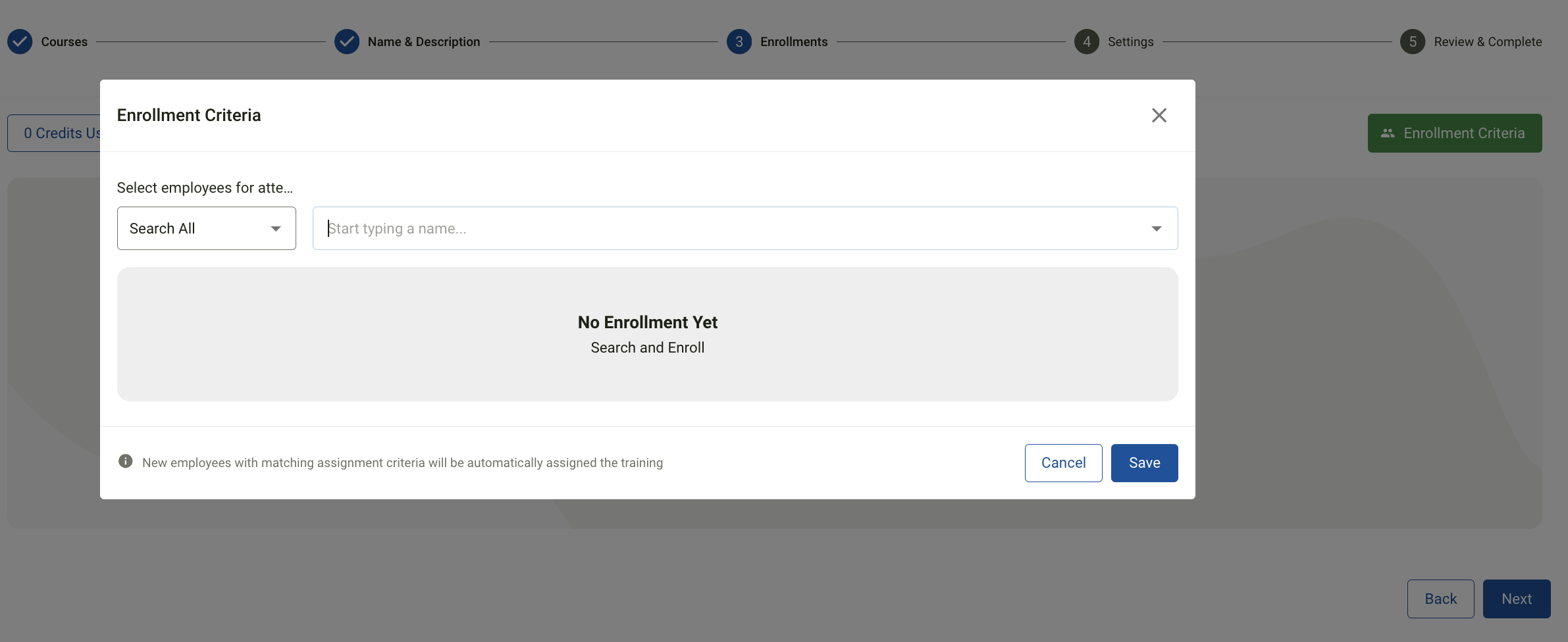
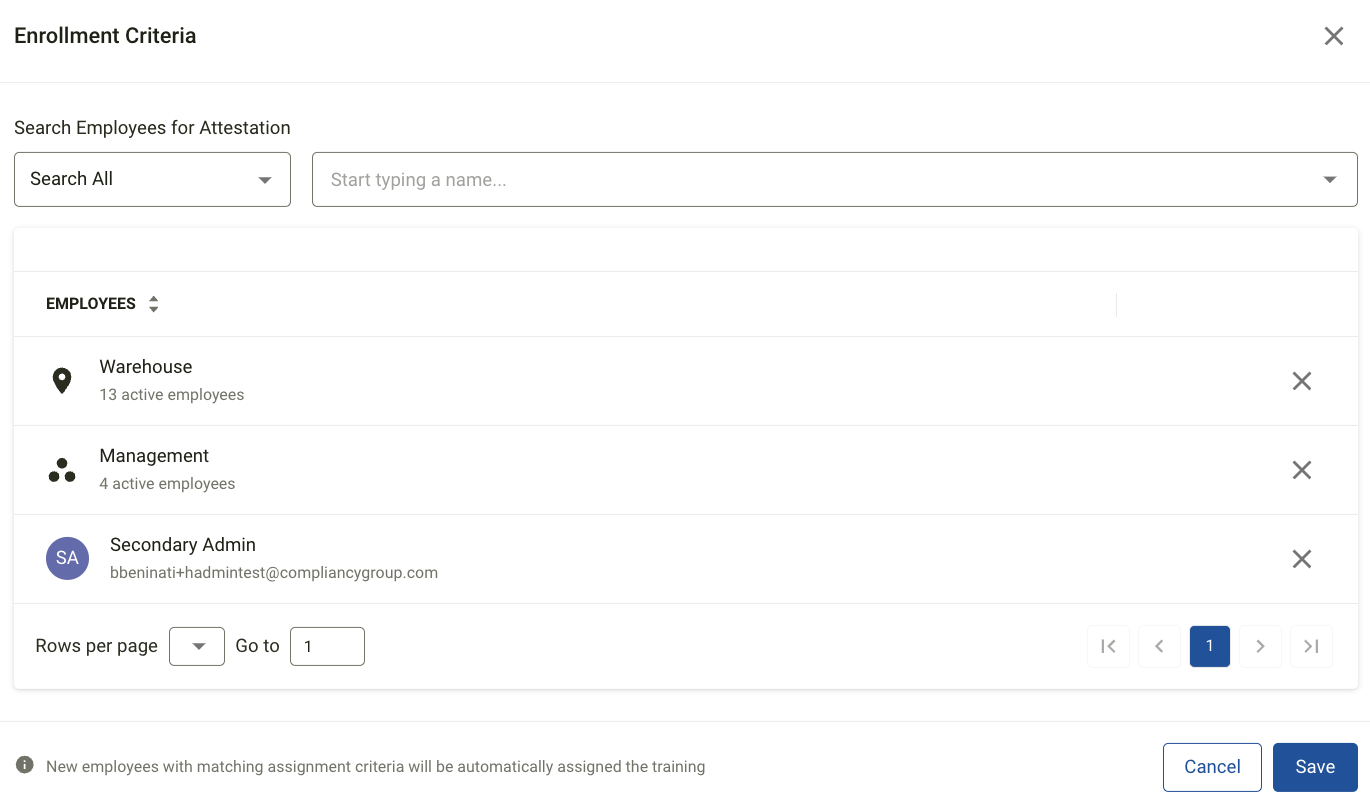
Step 3: Enrollment Criteria
Assign the training by Employee, Location, or Group. Multiple criteria can be combined. For example, a specific group, a location, and an individual all at once.
Selecting All Employees cannot be combined with any other criteria.
Step 4: Settings
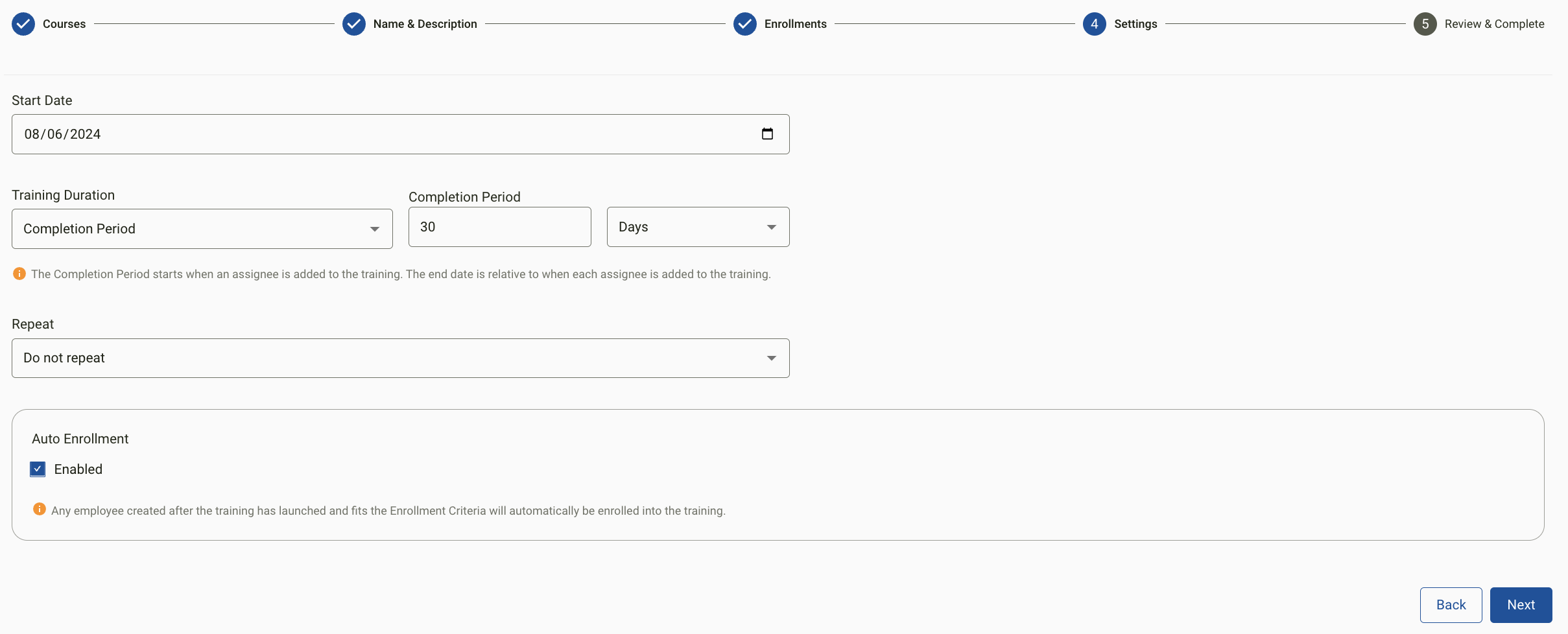
Start Date – The date the training becomes active and is assigned to employees.
Training Duration – Choose one of two options:
| Option | How It Works | Extra Options |
|---|---|---|
| Completion Period | Deadline is relative to each learner's enrollment date | Repeat: Quarterly, Semi-Annually, Annually, Bi-Annually |
| Due Date | Fixed end date applies to all learners | Grace Period: None, 14 Days, 30 Days, 60 Days, or Indefinite |
Step 5: Review and Create
Review all settings before selecting Create Training. Duration and repeat settings can be edited after creation, but courses cannot be.
Managing an Existing Training
Each Training appears as a tile showing the number of courses, status, enrollment stats, and settings. Select View for details.
Click the ellipsis (⋯) on any tile to access management options:
- Edit name or description
- Add enrollment criteria
- Duplicate the training
- End Training
- End & Archive the training
Important: Ended/closed trainings can be reopened using the ellipsis on the upper right hand side of the training tile. End & Archived trainings cannot be restored or re-enabled. The action is permanent.
Related Articles